Recording Deliveries
When stock arrives at your business, log it here. Each delivery automatically updates the Deliveries column on the Stock Management page, which feeds your usage calculation and ultimately your P&L.
1. Open Deliveries
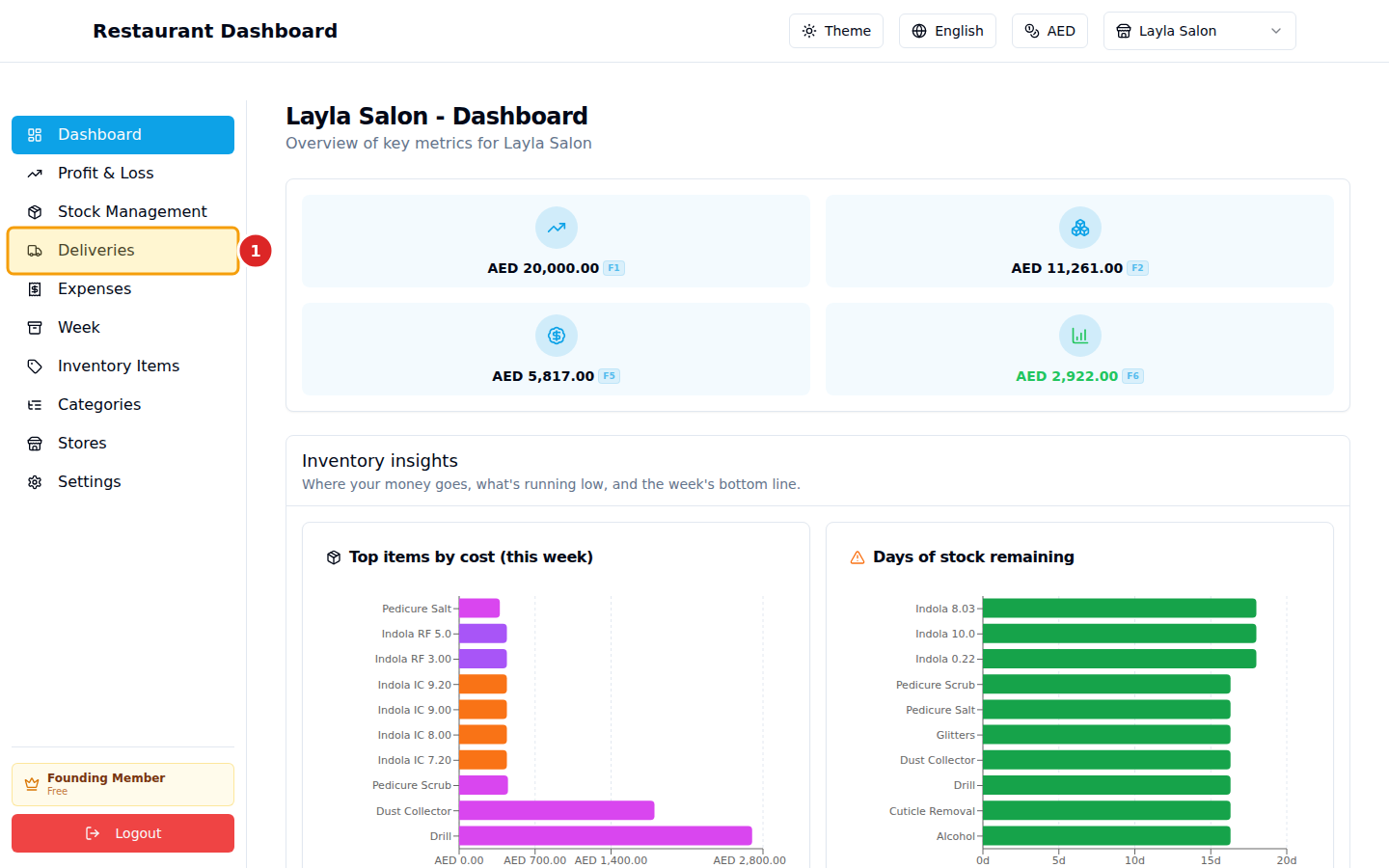
Click Deliveries in the sidebar.
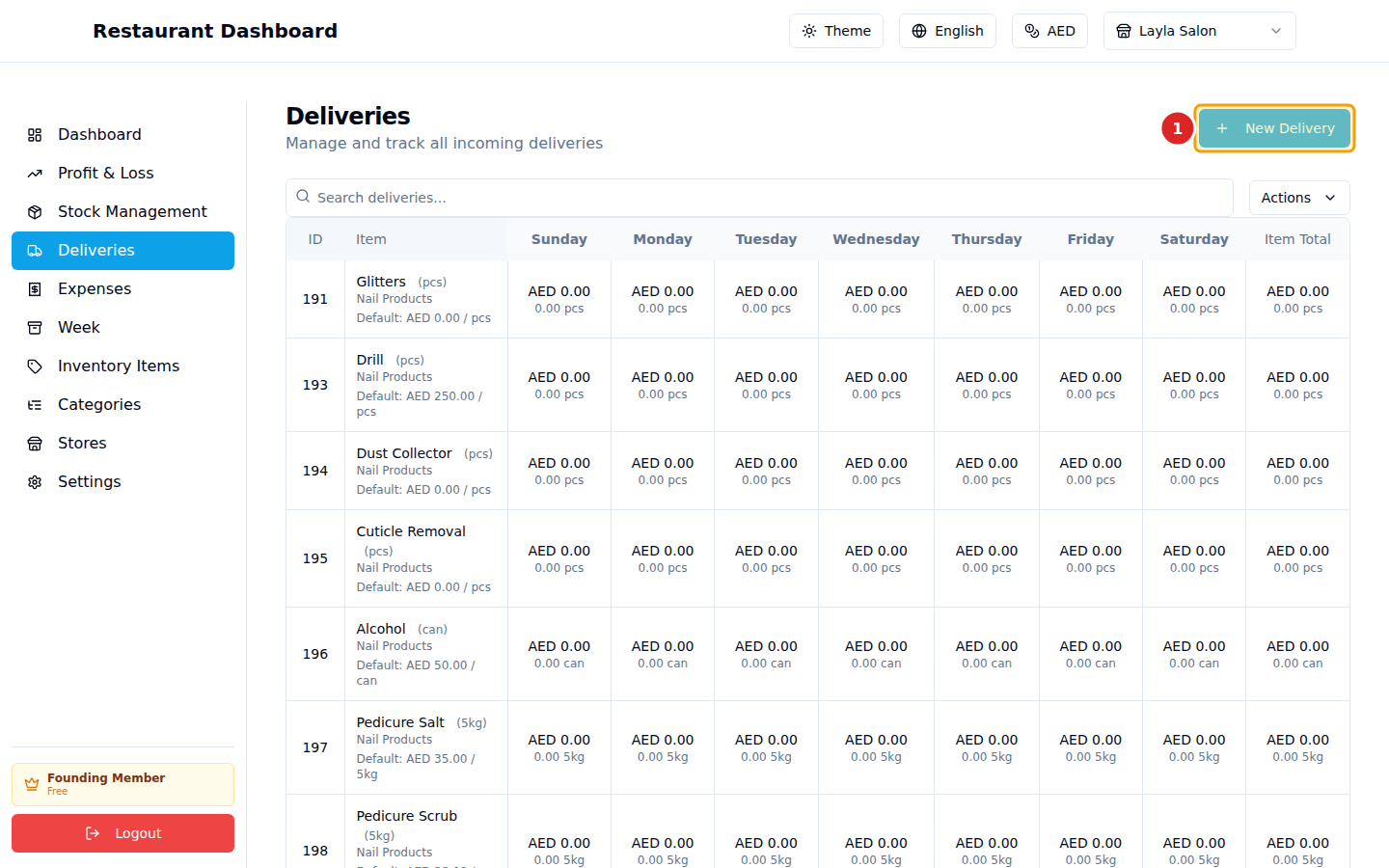
2. Click "New Delivery"
Top-right of the page.
3. Fill the form
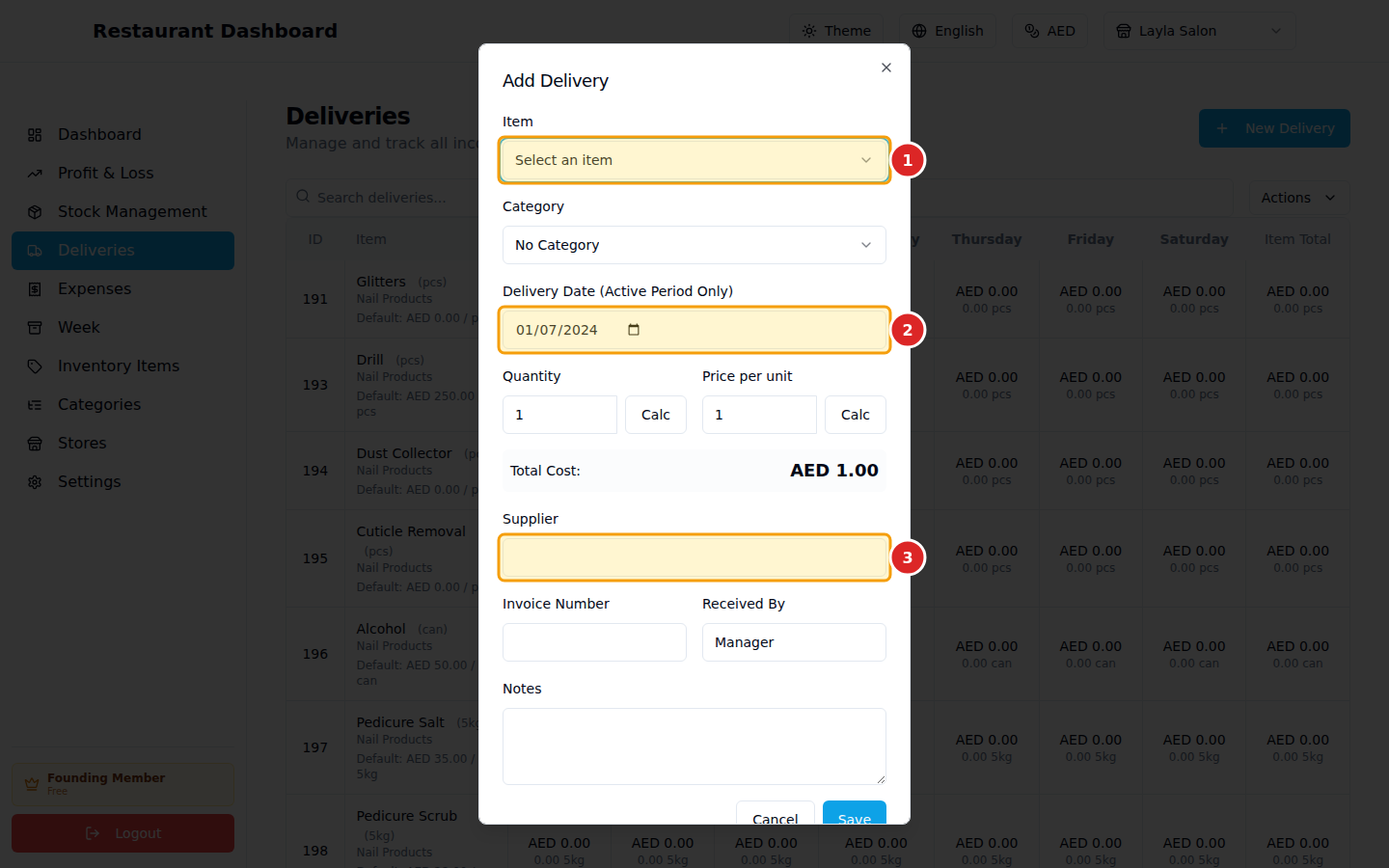
- Item — pick from the dropdown. Only items you've defined on the Inventory Items page appear here.
- Delivery Date — when it arrived. Picks up "this week" by default.
- Supplier — who delivered it. Type a name; if it's new, it gets added to your supplier list automatically.
The Quantity and Price per unit fields are below. Total Cost is computed live as you type. You can override the unit price (e.g. if a specific shipment was on promotion) — the override only affects that delivery, not the item's default price.
Click Save and the delivery appears in the weekly grid.
The weekly grid
The main table shows one row per item, with columns Sun → Sat. Each cell shows what was delivered that day. Click any cell to add a delivery on that specific day for that specific item — same form, pre-filled.
Common questions
I delivered the same item twice in a week. Just create two delivery entries. They'll both show in their respective day columns and both contribute to the week's total for that item.
I made a mistake on a delivery. Click the row → Edit → change the values → save. Or Delete to remove it entirely. Stock Management updates immediately.
Bulk import? Use Import Deliveries in the Actions menu — accepts an Excel sheet with item / date / quantity / price / supplier columns.