Managing Categories
Categories group your items (e.g. "Hair Products", "Nail Products", "Cleaning"). Every item belongs to one category, which is what the dashboard and P&L use to break costs down by area.
1. Open Categories
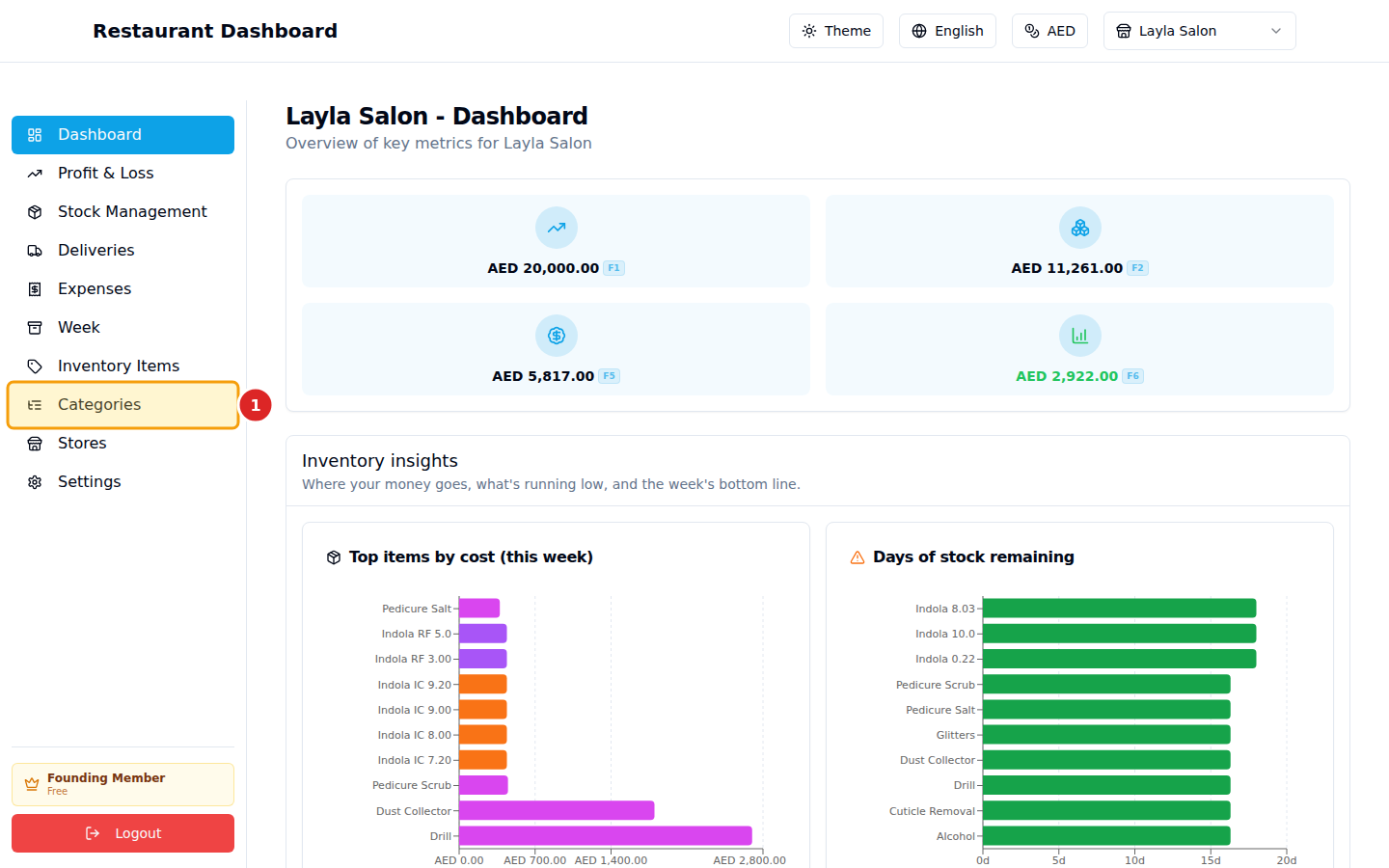
In the left sidebar, click Categories.
2. Search and create
The page lists every category with the number of items in each. Use the search box to filter when you have many.
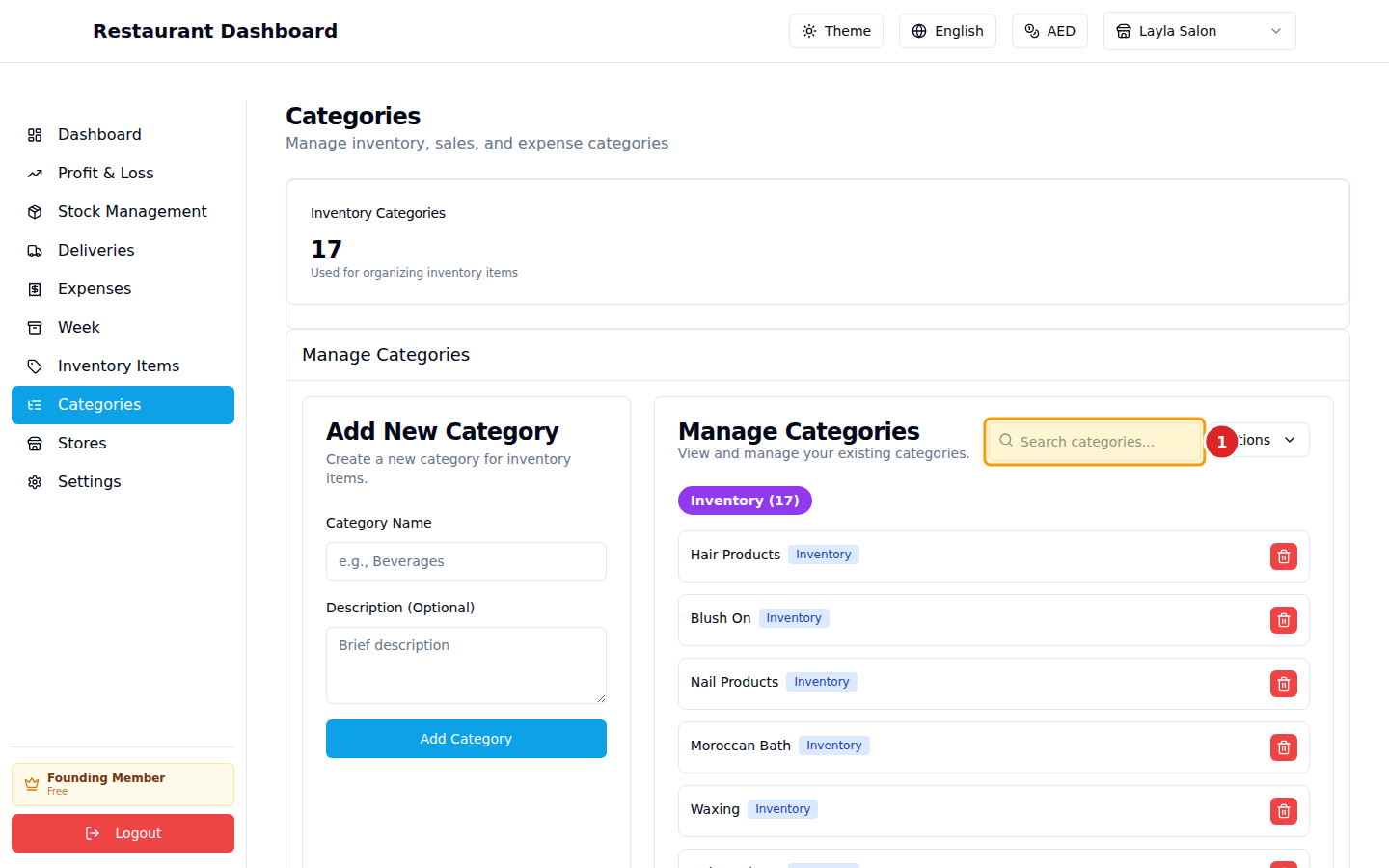
Click New Category to create one. Fields:
- Name — short label (shown on items, dashboard, P&L).
- Type — inventory (used by physical items) or expense (for expense entries on the Expenses page). Most categories are inventory.
- Description — optional internal note.
Common questions
Can I delete a category that's used by items? Yes — categories are soft-deleted. The items keep their categoryId reference so historical data isn't lost. Deleted categories disappear from new-item dropdowns but stay readable in old records.
Can I rename a category? Yes — click the pencil. The change applies everywhere the category is referenced (items, P&L, dashboard).